

Documentation Index
Fetch the complete documentation index at: https://import-docs.prequel.co/llms.txt
Use this file to discover all available pages before exploring further.
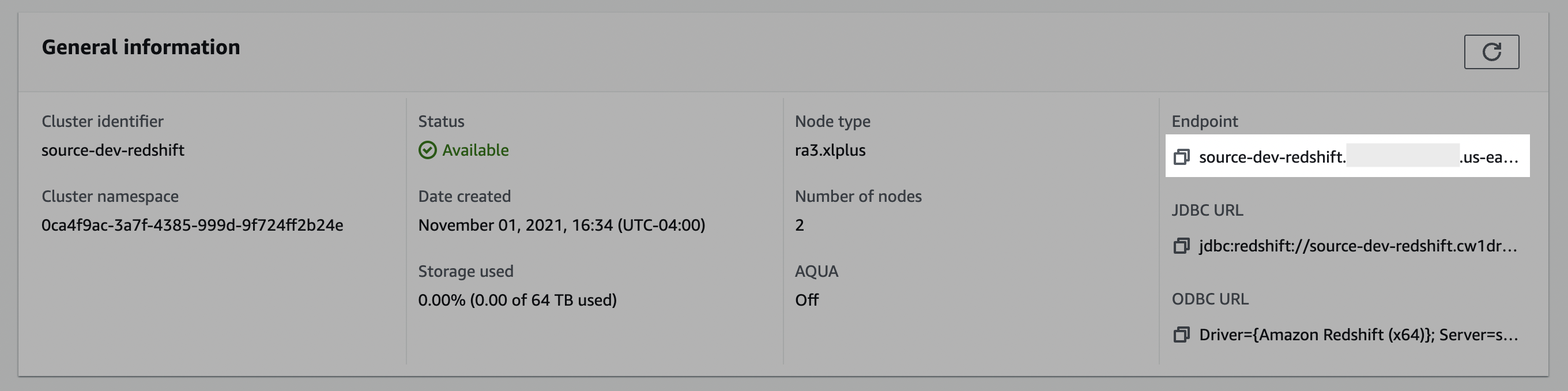
Step 1: Find cluster connection details
Select the cluster
- In the Redshift console, click Clusters.
- Select the cluster you would like to connect.

Step 2: Whitelist connection
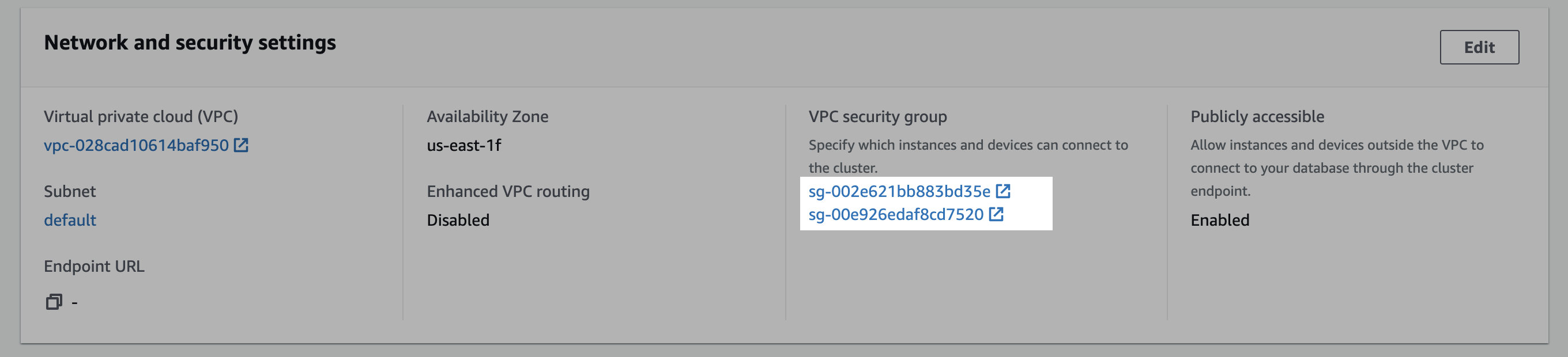
Open the VPC security group
- In the Redshift console, click Clusters.
- Select the cluster you would like to connect.
- Click the Properties tab.
- Scroll down to the Network and security settings section.
- In the VPC security group field, select a security group to open it.
Edit inbound rules
- In the Security Groups window, click Inbound rules.
- Click Edit inbound rules.
-
In the Edit the Inbound rules window, create a custom TCP rule for the static IP:
- Select Custom TCP in the drop-down menu.
- Enter your Redshift port number (likely
5439). - Enter the static IP address.
- Click Add rule.
Step 3: Create a Limited User
Create the user
Execute the following query to create a user (replace
<password> with a password of your choice).Step 4: Configure AWS authentication
You must also provide AWS credentials for cluster access. You can authenticate with either an IAM role (recommended) or AWS access keys.- IAM role (recommended)
- AWS access keys
Create an IAM policy
In the AWS IAM console, create a new policy with the JSON below. Replace
REGION_NAME, ACCOUNT_ID, CLUSTER_NAME, USERNAME (the user from Step 3), and DATABASE_NAME with values that match your cluster.Create an IAM role
In the AWS IAM console, create a new role using the custom trust policy below, and attach the permissions policy you created in the previous step. Reach out to your contact for the value of
<some_service_account_identifier>.Step 5: Submit your connection details
Provide the following details to complete the source setup:- The name is a descriptive name of the source
- The host (e.g.,
source-redshift.cw1drqwgbdue.us-east-1.redshift.amazonaws.com) - The port [e.g.,
5439] - The database for your Redshift cluster.
- The cluster identifier from Step 1.
- The AWS region from Step 1.
- The username from Step 3.
- The authentication credentials from Step 4:
- If using an IAM role: the IAM role ARN
- If using AWS access keys: the password from Step 3, the AWS access key ID, and the AWS secret access key